Exporting
Export lets you save both animations (GIF/APNG) and static images (PNG). Export settings can be adjusted in the Settings tab. For more information, please refer to Export Settings.
Animation List
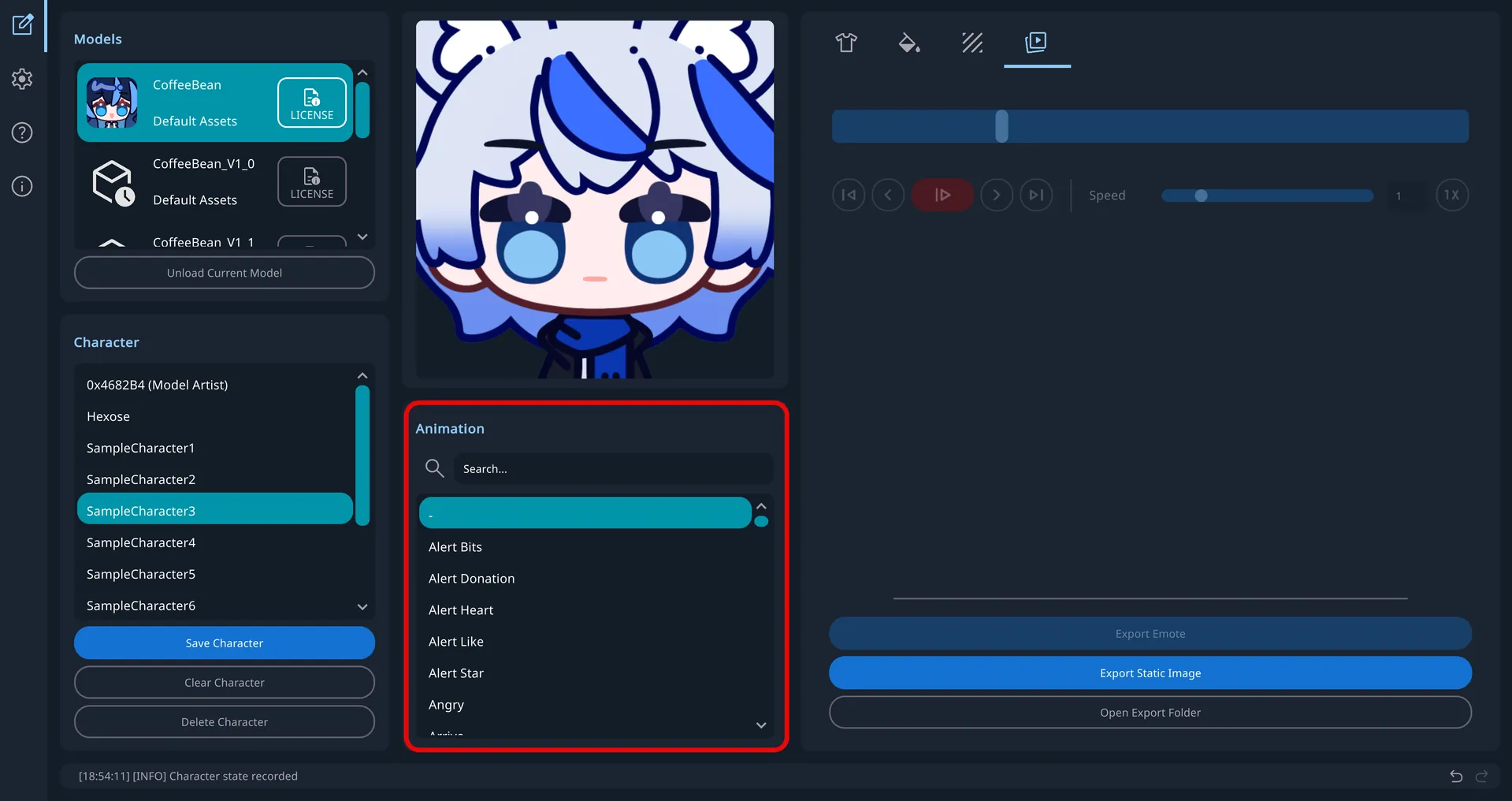
All available animation clips for the current model are shown in the animation list below the viewport. Click an entry to play the animation.
Animation Export
Step 1: Play an Animation
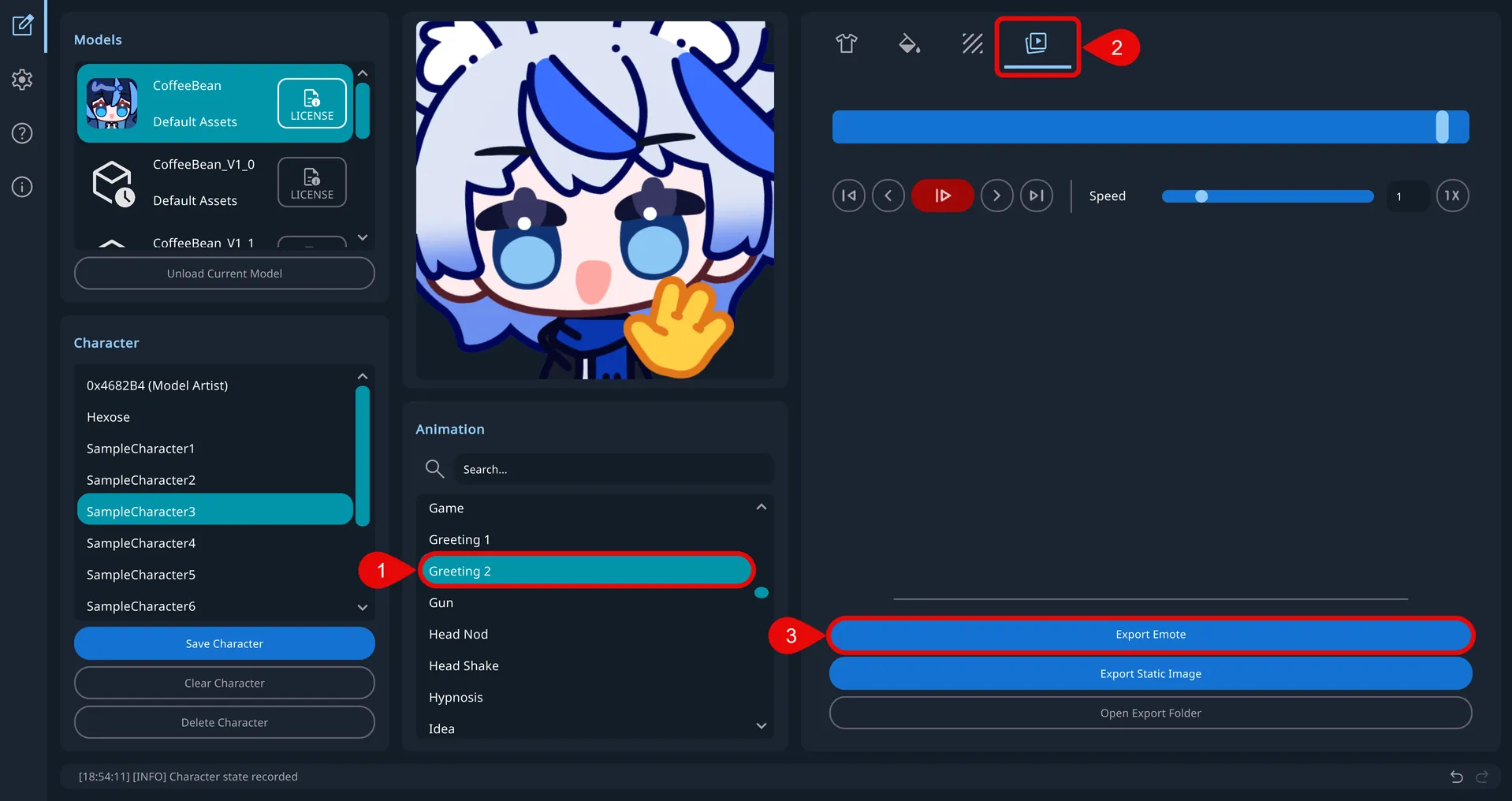
- Select an animation from the Animation List (below the viewport).
- Wait for the animation to begin playing.
- Confirm the motion is visible in the viewport.
Export only works when an animation clip is selected and currently playing.
Step 2: Export
- Open the Player tab.
- Click Export Emote.
- Wait for the export process to finish. A progress indicator may appear during export.
Step 3: Find Your Export
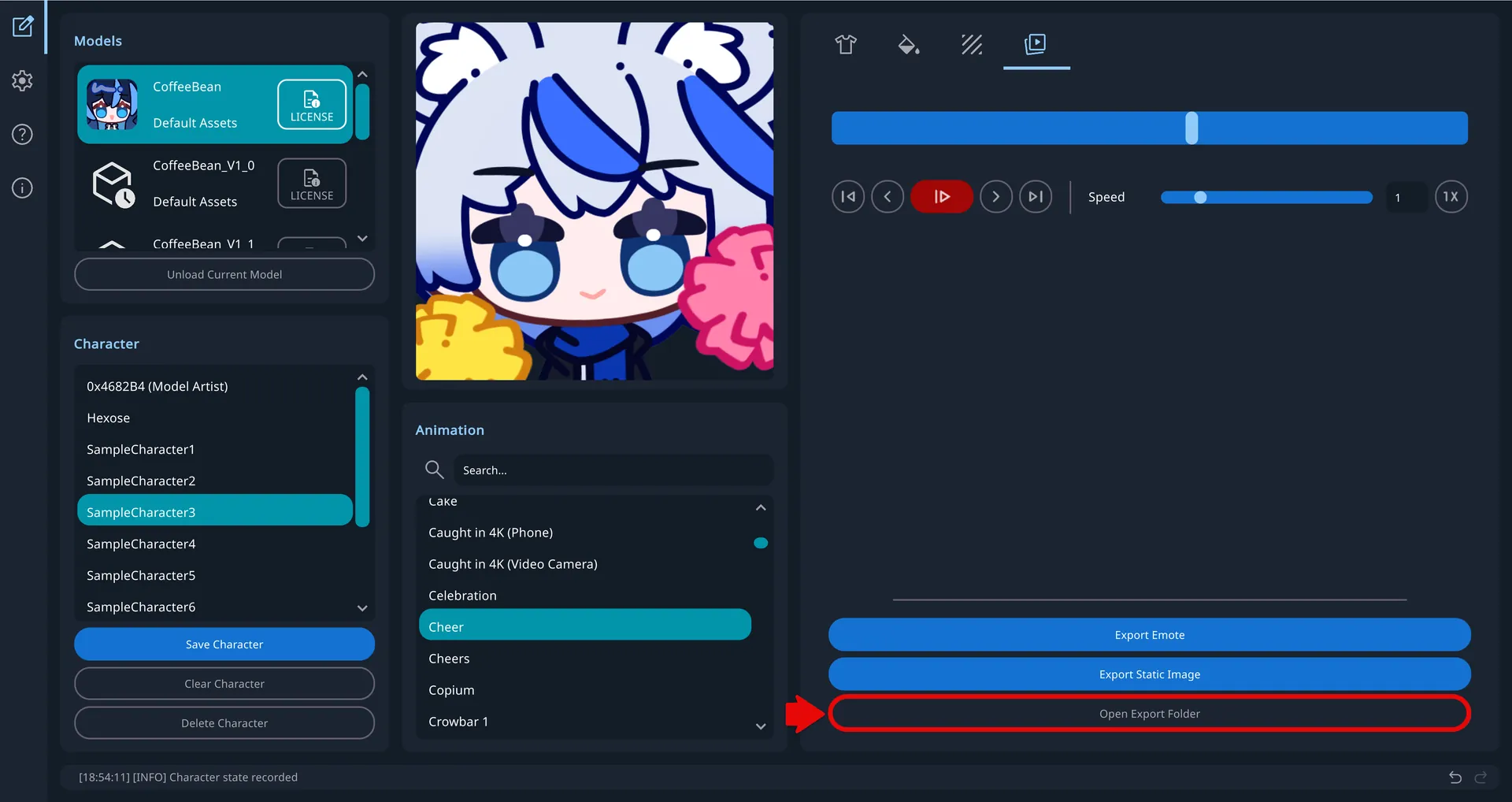
- Click Open Export Folder to open the export directory in your file explorer.
- Exported files follow this naming format:
CharacterName_AnimationName_YYYY-MM-DD-HH-MM-SS.gif.
Default export location (can be changed in Settings):
C:\Users\<username>\Documents\EmoteLab\Export\
If the system Documents folder has been relocated, the files may instead be found in a different drive or path, such as:
E:\Users\Documents\EmoteLab\Export\
Animation Playback Control
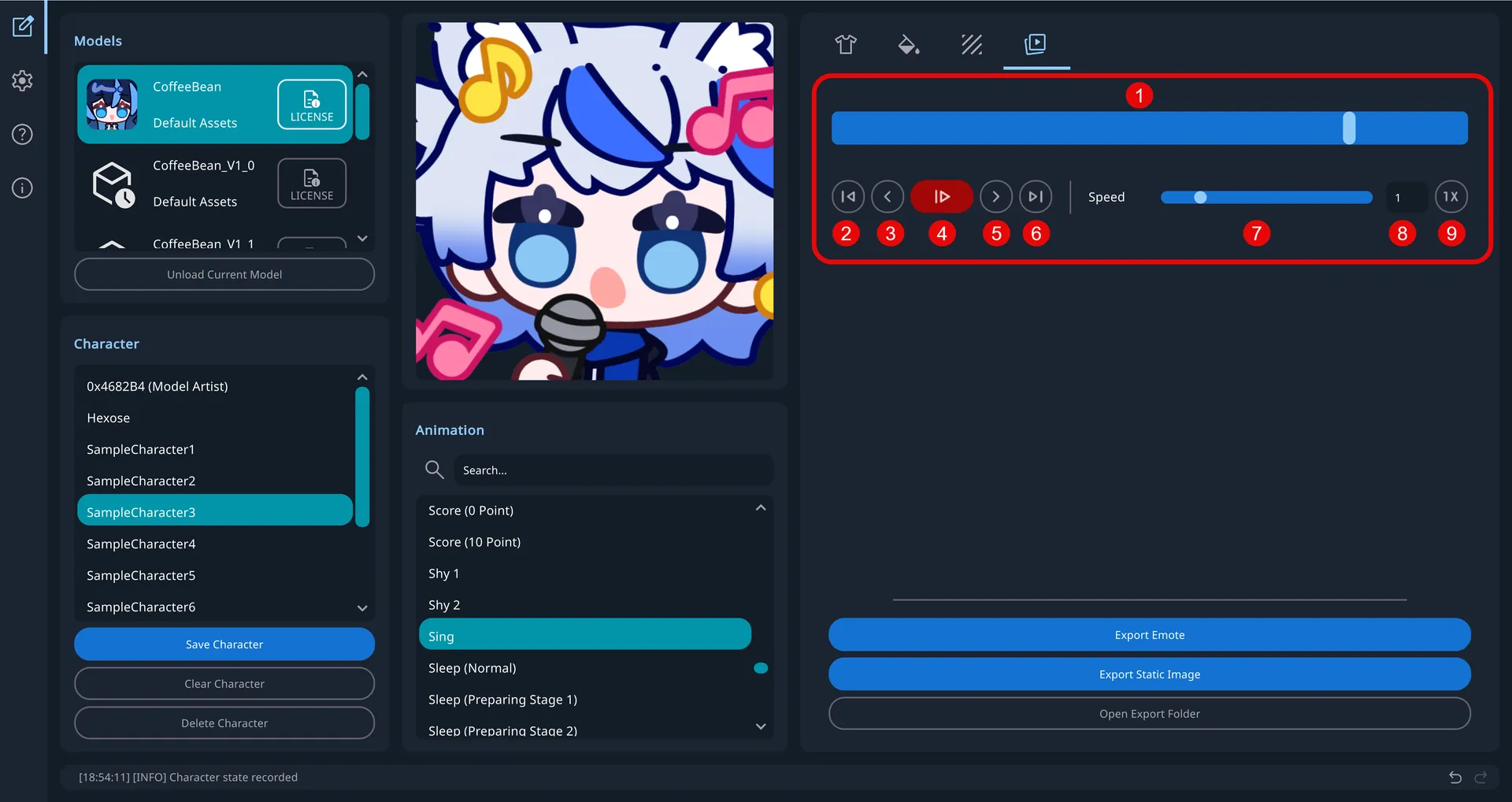
Use Animation Playback Controls to preview, seek, and adjust playback before exporting.
- Progress bar: Shows playback progress. Drag the thumb to seek to a specific frame.
- First frame button: Jump to the first frame.
- Previous frame button: Move back by one frame.
- Pause/Resume button: Pause or resume playback.
- Next frame button: Move forward by one frame.
- Last frame button: Jump to the last frame.
- Playback speed slider: Drag to adjust speed (
0.2xto5x). This affects animation export. - Playback speed field: Enter a numeric speed value to set playback speed.
- 1x button: Reset playback speed to
1x.
Export Behavior
When an animation is playing, export starts from the first frame.
When an animation is paused, export starts from the current frame.
To start export from a specific frame:
- Pause the animation.
- Use playback controls to move to the target frame.
- Click Export Emote.
Export Static Image Behavior
Static image export captures the current frame.
For best results, pause the animation, select the exact frame you want, then export.
Troubleshooting
Export Won't Start/Failed
- Check animation is playing: Ensure an animation is playing
- Check export folder: Ensure the export folder path is valid and writable
- Check disk space: Ensure you have enough disk space
Export Takes Too Long
- High-resolution, frame-rate exports can take very long.
- Reduce resolution: Lower the width and height
- Reduce frame rate: Lower the FPS setting
- Limit frame count: Set a Max Frame Count limit